Six Tips to Increase Windows 10 Performance & Make It Faster

1. Turn On Game Mode

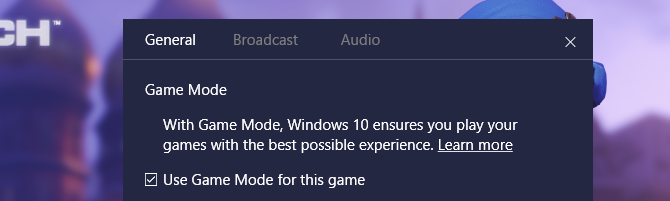
The latest version of Windows 10, the Creators Update, adds a new feature known as Game Mode. There’s no way to perpetually run in Game Mode, unfortunately, but you can activate it with a simple key combination of the Windows Key + G. However, you must first enable Game Mode.

To enable Game Mode (it’s only available in Windows 10 Creators Update) open Settings > Gaming and choose Game Mode. Turn on Use Game Mode. It’s only supposed to be used for games, but you can activate it whenever you need to get a little burst of speed. It’s particularly useful if you have a lot of background apps that are dragging down a resource-intensive program.
2. Turn Off Visual Effects

Windows offers a really easy way to shut off all visual enhancements. Simply navigate to System > Advanced system settings and choose Advanced from the tabs above. Under Performance, choose Settings. Then check the radio button for Adjust for best performance to shut off all visual effects.

I have visual effects disabled on a few systems and it seems to make a big impact, particularly on older computers. On the downside, things won’t look as nice. I advise leaving Smooth edges of screen fonts enabled as it helps when reading text.

3. Speed Up Your Processor

Windows possesses three predefined settings (at least) for how your processor scales its frequency up to run processes. The three defaults are BalancedHigh performance, and Power saver. (Sometimes manufacturers also include custom plans here.) You are almost always better off on a laptop using Balanced or Power saver, but High performance — as the name suggests — makes Windows faster. Because it consumes the most amount of power it’s also more appropriate for desktops. Choose it if you want to get the most juice out of your computer.

4. Turn Off Startup Programs

About half of the programs that I install try to run silently in the background. That’s fine for just a handful of programs, but the effect on performance is cumulative. If your computer has enough programs set to run at startup, the entire system will bog down. Getting rid of non-essential startup software is absolutely essential for performance.

Press the key combination of Ctrl + Alt + Delete to enter Windows Task Manager. Choose Task Manager from the menu that pops up. Then select the Startup tab from the top of the screen. From the Startup tab, you can eliminate most auto-starting applications. The majority of apps out there don’t need to run in the background, unless they came preinstalled with your computer (and even these are oftentimes bloatware).

5. Malware Scanner

We’ve written to death the subject of malware scanners for good reason: most performance problems originate with malignant programs running wild in the background. Some of the better free malware scanners out there include MalwarebytesSuperAntiSpyware, and ClamWin.

6. Registry Cleaner

The Windows registry keeps a manifest of settings for Windows and other programs. Oftentimes, programs make changes to the registry when installed but when uninstalled fail to remove those changes. Over time, thousands upon thousands of registry modifications slow system performance. A registry cleaner removes those changes. However, in my opinion, registry cleaners cause more problems than they solve. While you might see a tiny amount of performance improvement, for the most part, you’re likely to see glitchy OS behavior after running a cleaner.

The best program out there for cleaning your registry is CCleaner.

3.jpg

How to Test If Your Micro-USB Cable Is Charging Properly

android-charging-tricks-670x335.jpg

Different chargers are going to charge your Android device at different rates, and some broken chargers might not be charging your device as quickly as they claim they can.

If you’ve ever run into issues charging your device, or you’d just like to test out how effective your charger is, read on. Today, we’re going to step through how to measure the amperage your charger is delivering to your smartphone or tablet.

Download Ampere

The first step is to grab this handy app from the Play Store called Ampere, which will do the measuring for you. It should work on any device running Android 4.0 and above, though the developer has noted in the description that certain models aren’t behaving quite right, like the HTC One M7 and M8.

Testing Your Charger

For the most accurate measurement of your charger’s full capabilities, plug it into its official USB to wall outlet adapter, and plug that into your nearest outlet. We’ll discuss in the next section how plugging into your computer can change your results.

ampere-2.png

Above, you can see some of the information provided by the app. It takes about 10 seconds to measure the charge of your phone, which is what you see on the left. On the right is the settings menu, which you will probably never have to visit.

The app will use orange text when you’re not plugged in and blue text when you are plugged in. When not plugged in, you can see how much energy your phone is currently using. This number will vary depending on how many things your phone is trying to do at once.

Below, you can see my phone with the brightness set to low (left) and the brightness set to high (right). Clearly, the brightness of my screen is quite a major pull on my battery, but other factors can influence this too, including apps updating in the background, Wi-Fi or cellular signal strength, and more.

ampere-4.png

The app itself uses a very modern Lollipop-based design, which is easy on the eyes. Tapping the circular icon to the left will take you to your full battery stats. Negative numbers mean that your phone is losing charge, and positive numbers show how much charge it is gaining.

Make Adjustments

If you’re not getting a charge as fast as you want, there are ways to increase your charging speed.

For instance, switching your phone into airplane mode and keeping the screen off while it’s charging will allow it to charge much faster. If you’re not willing to go that far though, we have some other tips for squeezing the most battery life out of your device.

Also, plugging your phone into a computer or a wall outlet may seem like they do the same thing, but they’re much different. Computers can’t output the same level of amperage as a wall socket can. Below, you can see my charger speeds when plugged into the wall (left) and when plugged into my computer (right).

ampere-3.png

It’s also recommended that you use the charging cable that your phone or tablet shipped with, rather than a third-party charger. The hardware manufacturer has tested your device with that cable specifically, and you know it has the right amperage.

If your phone supports wireless charging, that’s going to be even slower than charging from your computer. It’s convenient for sure, but still quite slow.

And, for complete optimum charging, keep it cool. Heat is bad news for batteries, and one of the big things you should avoid to keep your battery healthy. Place it in a cool spot, take it out of its case, and it should charge a bit quicker.

Source: MakeUseOf

Here's How to Download All the Data Apple Collects About You

Apple is making it easier for its users to download their data the company has collected about them so far.

On Wednesday, Apple just launched a new Data and Privacy website that allows you to download everything that the company knows about you, from Apple ID info, device info, App Store activity, AppleCare history, your online shopping habits to all of your data stored in its iCloud.

A similar feature was recently offered by Facebook, enabling its users to download all of their data, not only what they have posted, but also information like facial recognition and location data, following the Cambridge Analytica scandal.

Apple has currently made this feature only available for people having accounts in European Union (along with Iceland, Liechtenstein, Norway and Switzerland), to comply with the General Data Protection Regulation(GDPR) act, which goes into effect on May 25.

That's why big companies like Apple have decided to inform their European customers about the new privacy policies.

Here's How to Download Your Data:

  • Log in to privacy.apple.com on your Mac, PC, or iPad.
  • Select the Get started link under the "Obtain a copy of your data" heading in Manage your data.
  • You can press 'Select All' to download everything or tick the boxes of the data categories you want to download. iCloud data are provided into a separate list as this data may be large and can take a long time to download.
  • Apple splits up the data into chunks, which ranges from 1 GB up to a maximum of 25 GB, letting you select your preferred maximum file size. Select a size and hit 'Continue.'

Your download is now in progress, and Apple will send you an email when the files are available to download, which can take up to a week. Your downloaded data is then automatically deleted after 2 weeks.

Here's the List of Data that You can Download:

  • App Store, iTunes Store, iBooks Store and Apple Music activity
  • Apple ID account and device information
  • Apple Online Store and Retail Store activity
  • AppleCare support history, repair requests and more
  • Game Center activity
  • iCloud Bookmarks and Reading List
  • iCloud Calendars and Reminders
  • iCloud Contacts
  • iCloud Notes
  • Maps Report an Issue
  • Marketing subscriptions, downloads, and other activity
  • Other data
  • iCloud Drive files and documents
  • iCloud Mail
  • iCloud Photos

Besides data download feature, Apple is also providing an option of permanently deleting all of your data, which has been made available globally starting today. Once you initiate the data delete option, the company can take up to 7 days to approve the request.

But keep in mind: Once deleted, there is no way you can retrieve your data.

Comcast is Leaking the Names & Passwords of Customers’ Wireless Routers

5-xfinity-xfi-gateway.jpg

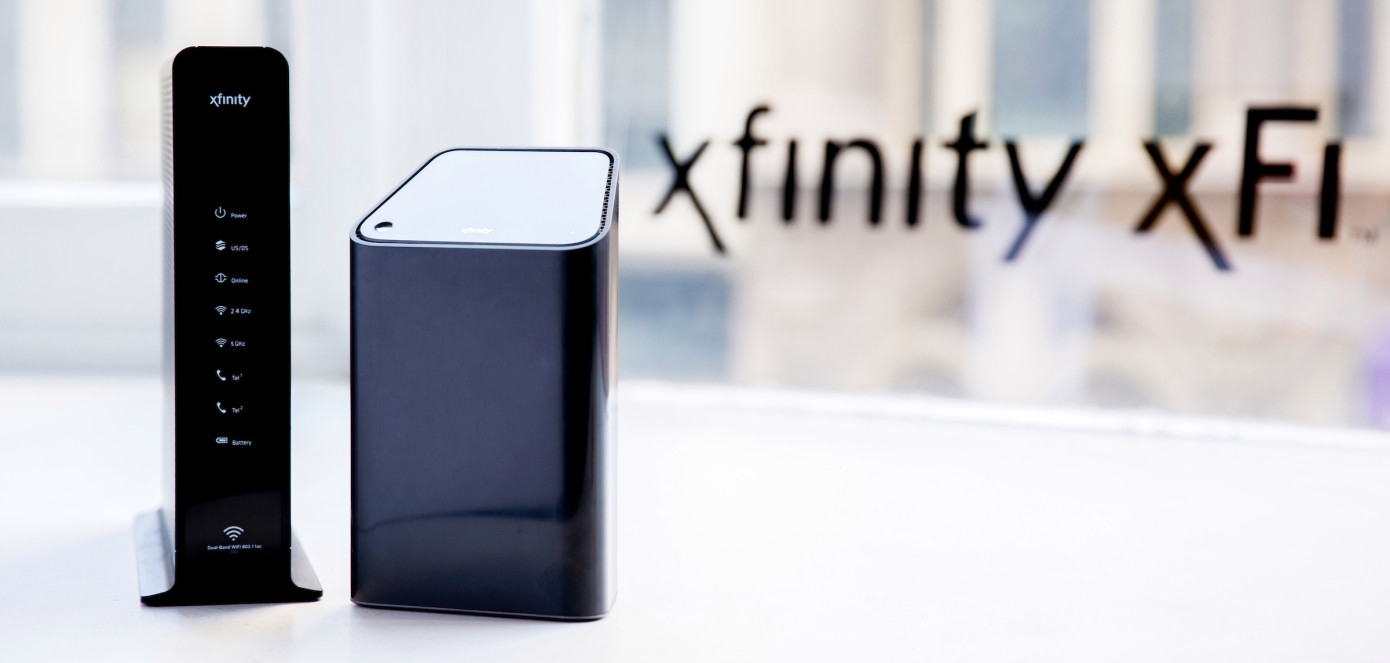
Comcast  has just been caught in a major security snafu: revealing the passwords of its customers’ Xfinity-provided wireless routers in plaintext on the web. Anyone with a subscriber’s account number and street address number will be served up the Wi-Fi name and password via the company’s Xfinity internet activation service.

Security researchers Karan Saini and Ryan Stevenson reported the issue to ZDnet.

The site is meant to help people setting up their internet for the first time: ideally, you put in your data, and Comcast sends back the router credentials while activating the service.

The problem is threefold:

  1. You can “activate” an account that’s already active
  2. The data required to do so is minimal and it is not verified via text or email
  3. The wireless name and password are sent on the web in plaintext

This means that anyone with your account number and street address number (e.g. the 1425 in “1425 Alder Ave,” no street name, city, or apartment number needed), both of which can be found on your paper bill or in an email, will instantly be given your router’s SSID and password, allowing them to log in and use it however they like or monitor its traffic. They could also rename the router’s network or change its password, locking out subscribers.

This only affects people who use a router provided by Xfinity/Comcast, which comes with its own name and password built in. Though it also returns custom SSIDs and passwords, since they’re synced with your account and can be changed via app and other methods.

What can you do? While this problem is at large, it’s no good changing your password — Comcast will just provide any malicious actor the new one. So until further notice all of Comcast’s Xfinity customers with routers provided by the company are at risk.

One thing you can do for now is treat your home network as if it is a public one — if you must use it, make sure encryption is enabled if you conduct any private business like buying things online. What will likely happen is Comcast will issue a notice and ask users to change their router passwords at large.

Another is to buy your own router — this is a good idea anyway, as it will pay for itself in a few months and you can do more stuff with it. Which to buy and how to install it, however, are beyond the scope of this article. But if you’re really worried, you could conceivably fix this security issue today by bringing your own hardware to the bargain.

5 Cyber Threats All Businesses Need to Protect Themselves Against

There’s never a good time to find that your business has been hit by a cyber attack. The scale, impact and how you cope with the attack is crucial for your company. Here are the five main cyber threats to look out for and how you can protect yourself and your organization from them.

1.   Scam Emails

Scam emails are one of the most popular forms of online phishing. In this kind of attack, hackers send out emails in order to trick you into giving them sensitive information or access to devices and/or systems.

Opening a hostile link in a phishing email can infect your computer with a virus or direct you to a phony website asking you to input details such as login credentials. Emails can also contain infected attachments that lure you into downloading them; once downloaded, they infect your machine and have the potential to gain access to your businesses’ information.

The best way to protect your business from this kind of attack is keep your systems and software up to date. Regularly backing up your data ensures that if you do get attacked, the impact can likely be minimized. Be extra careful when opening emails and browsing the web. When in doubt, throw it out: If you have the slightest suspicion about an attachment or a link, even if you know the source, it’s best to delete.

2.   Ransomware

Ransomware attacks have become increasingly popular in recent years. In this kind of attack, hackers encrypt your data and then demand a cash “ransom” for it to be returned to you – though there’s no guarantee that you’ll get it back.

Ransomware attacks occur in a number of different ways, ranging from phishing emails to taking advantage of weaknesses in outdated computer systems.

The 2017 WannaCry outbreak infected networks at 16 NHS organisations across Britain due its heavy reliance on an outdated operating system. The outbreak cost the NHS £180,000 in emergency fees. Doctors were reduced to using pen and paper when diagnosing patients, and ambulances were redirected after various accident and emergency departments were forced to close.

This ransomware attack brought the NHS to its knees and, if it was to happen to a smaller organisation, could put it out of business. One of the best ways to prevent these attacks from happening is to keep your systems updated.

3.   Banking Virus

Banking viruses are specifically designed to steal your login information and security codes for your business’ online banking account, giving the hackers free reign of your finances.

These viruses can be spread via emails and will often take you to an illegitimate site that prompts you input your details.

The best way to protect your business from this type of attack is to limit access to sensitive accounts to a small group of trustworthy team members.

4.   Stalking and Surveillance

You often hear about celebrities and politicians being stalked and having their devices hacked into, but businesses can also fall victim to this.

Criminal groups and business rivals will go to great lengths to find out information about your business operations. Cyberstalking methods can include use of email, instant messenger, chat rooms, websites, interactive portals and social networking sites.

The best way to protect yourself from cyberstalking and surveillance is to not release too much information. These hackers will often try and build a relationship with you to get the information they want. Remember to keep your cards close to your chest and don’t release anything business sensitive to anybody.

5.   Oversharing Personal Information

As a business, you are likely to use many different software packages to help with daily operations. You may use an online cloud-based storage system or an accounting suite that helps you tidy your books up.

The point is, you need to be sure that you can trust these providers before committing to their services. You’re giving them control of vital business information so, choose wisely and do your research. You don’t want your most vital business assets falling into the wrong hands.

Before downloading new apps or using new websites, make sure you know what information they have access to. As technology has advanced, these services can track location, listen to our conversations and even access the files on our devices, so it’s important to review permission before using.

As one cyber threat is resolved, hackers are already planning and looking for new ways to infiltrate. It’s imperative to the survival of your business that you take the relevant steps to protect it. Remember, it’s easier to prevent than find a cure, so don’t wait until it’s too late.