Does Your Computer Have a Virus? 10 Signs It Might!

The symptoms of your latest illness could be indicative of a number of different health issues. Similarly, a computer virus can throw up symptoms which could be indicative of a range of different problems. While each symptom on its own may not trigger any red flags, a handful of unexpected behaviors may set off alarm bells — if you know what to look out for. Here are some telltale signs that your PC has a computer virus. If you have any doubts, contact our experts for a free consultation!

1. Your Browser Starts Misbehaving

Popups were the scourge of the mid-2000s. The incredibly irritating screen hogs were often associated with internet Explorer, and became synonymous with malware lurking on your computer. Of course, these days a popup may just be a particularly annoying advert. However, if you are getting popups even when your browser isn’t open, then it might be a sign that all is not well. Many of these malicious popups will be for fake antivirus software or alerts that your machine is infected.

https://twitter.com/pcrisk/status/844897831576055808

Popups aren’t the only indicator of concealed malware. If you find unexpected toolbars cluttering your browser, that’s often evidence something’s amiss. Most browsers allow you to search from the address bar, and it often defaults to Google. If your search provider has suddenly changed, or your Google search results look unusual, then you can be fairly certain you have an unwelcome intruder.

2. Your Antivirus Is Disabled

If someone wanted to break into your home, then one of the best ways of entering undetected would be to deactivate your home security system. The same is true of a computer virus. Some forms of malware are able to disable your antivirus software’s service, giving it unfettered access to your device. If the service is disabled, or your preferred antivirus software is unable to update, then it’s time to start battling the infection.

3. Your PC Has Slowed to a Crawl

There are many reasons why your PC’s performance may slip over time. You should eliminate all the main suspects — including memory hogs like Chrome — and check that all your hardware is in good working order. If you find everything to be functioning as expected, but your device is still slowing down, then it’s a good indicator of a malware infection. Malware can run applications and services in the background that clog up your computer, and can have an incredibly detrimental affect on your computer’s performance.

4. Your Files Are Disappearing

In recent years, one of the most devastating trends has been the rise of ransomware. This infection encrypts all your files, putting them beyond reach. The only way to unlock them is to pay the ransom, often in Bitcoin, but without a guarantee that they will be unlocked. The time between infection and encryption is often short, so the best defense is backing up your files regularly.

The best advice if you become infected with ransomware is to not pay the ransom. Other forms of malware can also lead to your files going errant. This can often be harder to detect, as you probably only notice once you need to open the file. However, if large chunks of data are missing then you should start scanning for a computer virus.

5. You Have Trouble Connecting to the Internet

If you suffer from poor network connectivity, then errors connecting to the internet are probably a regular occurrence for you. However, if they start fairly suddenly, or in conjunction with any other unusual behavior, then it may well be a symptom of a viral infection. You may think it seems strange that the virus would want to block your connection to the internet.

https://twitter.com/brnnbrn/status/385576492551258112

However, some malware changes your network settings to add a proxy and block your access to the internet to prevent you downloading tools to remove the infection. The best way to tackle this type of attack is to download a malware removal tool like Malwarebytes on another computer and transfer it to the infected machine via USB.

6. Programs Are Crashing All the Time

Programs can crash for a whole host of reasons which often have nothing to do with malware. Fortunately, there are plenty of ways that you can close the offending app and get back to enjoying your day. If the regular troubleshooting steps don’t make an impact, then there’s a high probability that malware has something to do with it. If you have been experiencing the Blue Screen of Death (BSOD) with alarming frequency, then make note of the error code. Sometimes, Windows freezes up and hangs without much of an explanation.

Often the BSOD can be caused by hardware issues, but if investigation comes up empty, then there’s a good chance that a computer virus may be to blame.

7. New Programs Appear Unexpectedly

While flicking through your installed programs, you unearth a few that you really can’t remember having installed. There’s a chance that these came from dubious but legitimate installers. However, if they have suddenly appeared and you are confident you didn’t install them by mistake, then it could indicate an infection. Your antivirus normally identifies these as Potentially Unwanted Programs (PUPs) and will alert you to them. If you haven’t seen a notification from your security software, consider running a manual scan Clicking "next" repeatedly is the quickest way of installing apps on Windows - until you find you installed other programs on your computer without realizing it, thanks to OpenCandy. 

If nothing is found, then perform an internet search to see if anyone else has reported that application as a PUP.

8. You Can’t Access Windows Utilities

When something goes awry on our Windows computer, the first thing we reach for is Ctrl + Alt + Del — only this time, you find that nothing happens. You attempt to right click on the taskbar to open Task Manager instead. Still nothing. Maybe opening it from the start menu will help? No luck there either.

You try to open Control Panel, and even Command Prompt to no avail. It’s almost as if there is something preventing you from opening these Windows utilities — and it’s quite likely there is.

9. Your Hard Drive Is Out of Control

https://twitter.com/twainrichardson/status/923699506469781504

Last week you had a sizable 30 percent free space on your hard drive. Now, you have less than 5 percent. You haven’t downloaded any large files, or installed any new software, so where is this data coming from? The most likely answer is that malware is downloading files and storing them on your hard drive. Another indicator is excessive hard drive activity.

Alarm bells should be ringing if you aren’t running any programs, or accessing files and your hard drive is showing a lot of activity and getting a little on the warm side.

10. Your Accounts Are Sending Spam

If you’ve received an accusatory message from a friend asking why you would recommend them weight loss pills, you should be on high alert. Odd messages like these indicate the presence of malware — so long as you didn’t send these messages as a form of misguided advice. Viruses are designed to spread, and one incredibly effective way is to bombarded your friends and contacts.

https://twitter.com/Oakleef1/status/927152687354990592

Most people are now accustomed to ignoring messages about magical pills and surprise inheritances, however, the viruses are maturing. Phishing is more commonplace than these overt examples of spam, where the recipient is tricked into opening a malicious link or attachment. This is a very effective means of spreading the computer virus as people are often more trusting of messages and emails from people they know. Catching a phishing email is tough! Scammers pose as PayPal or Amazon, trying to steal your password and credit card information, are their deception is almost perfect. 

It’s Oh So Quiet

Everything we’ve described so far has been a visible symptom of an infection. However, not all malware, particularly sophisticated variants, will intentionally disguise themselves. This makes detection almost impossible. As the saying goes: “absence of evidence is not evidence of absence.”

Unfortunately all our digital devices misbehave from time to time. This means random app crashes or unexpected behaviour can be entirely unrelated to a malware outbreak. However, if after following common troubleshooting steps you still come up empty, then these symptoms can be a sign that you may have been infected:

  • Browser malfunctions and misbehaviours
  • Problems with your antivirus or security software
  • Sudden or unexpected device slowdown
  • Missing files
  • Internet connectivity issues
  • Frequent and unexplained program crashes
  • Potentially unwanted programs (PUPs)
  • Inability to access common Windows utilities
  • Unexplained hard drive activity
  • Spam originating from your email or social accounts

Viruses and other forms of malware are almost unavoidable these days. While Windows has traditionally been platform of choice for malware, Mac users beware: you are at risk too. The best you can do is be prepared and take sensible precautions.

Always run an antivirus — even on your smartphone. Maintain regular backups so that if the infection is too hard to remove you can start over with minimal impact. Downloading apps from free software sites can be a dangerous game, so be sure to stick to reputable sites. The internet is full of incredible content, but it pays to know what’s behind the link before you make that click.

7 Crucial Cyberattacks & Threats That Are Putting Your Small Business in Danger

By 2019, it’s predicted that the cost of damages caused by cybercrimes and attacks on both big and small businesses will reach an incredible $2 trillion. This is a huge sum of money, and when it comes specifically to small business owners, these kinds of attacks can ruin everything that you’ve worked so hard to build. This is why it’s so important for you to be aware of the threats that are out there, so you can learn to deal with them and protect your business. To keep you in the know, here are seven common and dangerous attacks to have on your radar.

If you want to ensure your small business is safe, contact one of our security experts for a free security audit!

Ransomware Attacks

These are some of the most increasingly common cyberattacks affecting systems and organizations around the world, such as the recent attacks on the National Health Service in the United Kingdom. In these attacks, ransomware infects a computer network and shuts off access, holding data and systems for ransom.

The network will remain this way until the set ransom is paid, usually by an untraceable bank transfer or bitcoin payment. To add more risk, there is usually a time limit for payment, and the threat that files may start to be deleted until the ransom is paid.

Malware

Malware stands for “malicious software” and is a form of software that can infiltrate a computer system and carry out certain tasks.

Some of these tasks include deleting and uploading files, gathering or harvesting personal files and information stored on the computer, recording keystrokes from the keyboard, accessing the user’s webcam remotely, disabling firewall and other security settings, sending spam email and so on.

From a small business perspective, this can be very damaging to your reputation, and in some cases, you may not even be aware that the damage is taking place.

Phishing Scams

Phishing is easily one of the most common kinds of cyberattacks, and it can affect everyone, from average internet users to global corporations. Phishing works by sending fake emails, text messages, social media posts or other messages or even setting up phony websites that look authentic.

“Then, the user will input their personal information into these pages which then links the data back the hacker. Of course, if this data is login information or bank details, a lot of damage can be caused to your business,” explains Charles Reyes, a security manager and Huffington Postcontributor.

Insider Attacks

One aspect of hacking you mustn’t overlook is the one from an inside job. If someone is leaving your business, or you’ve fired them, be aware of what they are doing on their last day and how they may access and misuse your information.

An insider attack could steal customer data; could change content on your website and more. Make sure, in the event that someone leaves or is fired, their access to your systems is revoked as soon as possible.

Brute Force Attacks

These are attacks that do exactly what the title suggests. Say your small business servers are protected by a password. There is software out there that can continuously attempt to log into your servers by trying every single password combination possible, which is why it’s known as brute force.

These are quite long-winded processes, and there are many different forms and setups, but you can easily protect your business by choosing a long password (like a positive phrase or sentence) and minimize the number of entry attempts possible.

Distributed Denial of Service (DDoS)

DDoS attacks are used frequently by hacking groups like Anonymous and can be implemented to bring down and limit access to some of the most protected, globally operating businesses in the world.

Let’s say that your small business website can cater to 100 users safely and adequately. A bad actor can use software which mimics access by 100 users, thereby bringing your servers to full capacity. Now, if you’ve got 10 hackers mimicking hundreds of people, that’s 1,000 users, and your servers will surely be taken offline.

Now consider the fact that a single piece of software can mimic millions of users, it’s easy to see why these attacks are so feared. The best way to protect yourself from these attacks is to keep your server software updated at all times and monitor your bandwidth to see incoming spikes of traffic.

Keylogging Attacks

This is one of the simplest forms of attack but by far one of the most damaging. A keylogger program can be small enough to be stored on a USB stick or sent through an email as an attachment, usually hidden as something else that you’ll want to click on, such as a document or music file.

Then, once active, the software will log every single key that you press and send this information to the hacker remotely. This can log bank details, login details and other important information that your business might be dealing with.

As you can see, there’s a lot of potential danger out there that can threaten your small business. With all this mind, it’s easy to see why you need to keep your systems up to date, your security provider updated and your wits about you.

What is Blockchain Technology?

From a cruising altitude, a blockchain might not look that different from things you're familiar with, say Wikipedia. With a blockchain, many people can write entries into a record of information, and a community of users can control how the record of information is amended and updated. Likewise, Wikipedia entries are not the product of a single publisher. No one person controls the information.

Descending to ground level, however, the differences that make blockchain technology unique become more clear. While both run on distributed networks (the internet), Wikipedia is built into the World Wide Web (WWW) using a client-server network model.

A user (client) with permissions associated with its account is able to change Wikipedia entries stored on a centralized server.

Whenever a user accesses the Wikipedia page, they will get the updated version of the 'master copy' of the Wikipedia entry. Control of the database remains with Wikipedia administrators allowing for access and permissions to be maintained by a central authority.

Wikipedia's digital backbone is similar to the highly protected and centralized databases that governments or banks or insurance companies keep today. Control of centralized databases rests with their owners, including the management of updates, access and protecting against cyber-threats.

The distributed database created by blockchain technology has a fundamentally different digital backbone. This is also the most distinct and important feature of blockchain technology.

Wikipedia's 'master copy' is edited on a server and all users see the new version. In the case of a blockchain, every node in the network is coming to the same conclusion, each updating the record independently, with the most popular record becoming the de-facto official record in lieu of there being a master copy.

Transactions are broadcast, and every node is creating their own updated version of events.

It is this difference that makes blockchain technology so useful – It represents an innovation in information registration and distribution that eliminates the need for a trusted party to facilitate digital relationships.

Yet, blockchain technology, for all its merits, is not a new technology.

Rather, it is a combination of proven technologies applied in a new way. It was the particular orchestration of three technologies (the Internet, private key cryptography and a protocol governing incentivization) that made bitcoin creator Satoshi Nakamoto's idea so useful.

The result is a system for digital interactions that does not need a trusted third party. The work of securing digital relationships is implicit — supplied by the elegant, simple, yet robust network architecture of blockchain technology itself.

Defining digital trust

Trust is a risk judgement between different parties, and in the digital world, determining trust often boils down to proving identity (authentication) and proving permissions (authorization).

Put more simply, we want to know, 'Are you who you say you are?' and 'Should you be able to do what you are trying to do?'

In the case of blockchain technology, private key cryptography provides a powerful ownership tool that fulfills authentication requirements. Possession of a private key is ownership. It also spares a person from having to share more personal information than they would need to for an exchange, leaving them exposed to hackers.

Authentication is not enough. Authorization – having enough money, broadcasting the correct transaction type, etc – needs a distributed, peer-to-peer network as a starting point. A distributed network reduces the risk of centralized corruption or failure.

This distributed network must also be committed to the transaction network’s recordkeeping and security. Authorizing transactions is a result of the entire network applying the rules upon which it was designed (the blockchain’s protocol).

Authentication and authorization supplied in this way allow for interactions in the digital world without relying on (expensive) trust. Today, entrepreneurs in industries around the world have woken up to the implications of this development – unimagined, new and powerful digital relationshionships are possible. Blockchain technology is often described as the backbone for a transaction layer for the Internet, the foundation of the Internet of Value.

In fact, the idea that cryptographic keys and shared ledgers can incentivize users to secure and formalize digital relationships has imaginations running wild. Everyone from governments to IT firms to banks is seeking to build this transaction layer.

Authentication and authorization, vital to digital transactions, are established as a result of the configuration of blockchain technology.

The idea can be applied to any need for a trustworthy system of record.

The Best Smart Plugs of 2017

Smart home tech is the hot new thing, but it can be pretty overwhelming if you’re just getting your feet wet. For newbies, it makes sense to start with something simple, and it doesn’t get any simpler than the humble smart plug. These cheap, compact devices plug into traditional wall sockets, upgrading them with remote control, scheduling, and power usage monitoring via smartphone apps. And if you’re already on the smart home bandwagon, you can even integrate them into your Apple HomeKit, Amazon Alexa, or Nest–driven ecosystem.

best overall

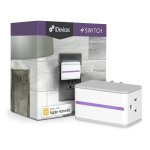
iDevices Switch: $28.97 - Amazon

852931005308

If you’re looking for a smart plug that hits all the right notes and never puts a foot wrong, the iDevices Switch is the way to go. On top of Android and iOS compatibility, the Switch also offers in-depth energy monitoring and seamless integration with the two most popular smart home ecosystems: Amazon Alexa and Apple HomeKit.

Looks aren’t everything, but the iDevices Switch is also easily the most attractive smart plug we tested. Along with its sleek, minimalist casing, it offers a unique “night light” LED strip that can be set to any color in the rainbow. Mercifully, the Switch only occupies a single outlet on your wall panel, and its own outlet is positioned on the right-hand side—a real advantage if you want to position it snugly behind a couch or bookcase. It could also be a disadvantage if you want to plug something in on the left side, but for most users it shouldn’t be an issue.

The slickly designed iDevices app is more attractive than most, and very easy to use. We never lost connection to the plug during our testing period, and even when we unplugged it and moved it to another room, the Switch was always quick to regain a WiFi connection. When we were out of the house, the remote control function made it easy to adjust schedules or turn the switch on and off. Energy monitoring functionality is robustly detailed, with daily, weekly, monthly, and yearly cost and usage estimates in addition to live power draw info.

best value

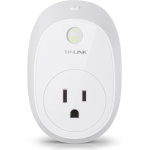
TP-Link Smart Wi-Fi Plug with Energy Monitoring: $34.99 - Amazon

Tp link hs110

The TP-Link Smart Wi-Fi Plug with Energy Monitoring is a lot more elegant than its cumbersome name suggests. Though it’s not the smallest plug we tested, or the most feature-packed, it offers a stellar combination of features and low, low price. Its MSRP of $39.99 is the second-lowest among all the plugs we tested, but its energy monitoring functionality, responsiveness, reliability, Alexa integration, and well-designed app made it one of our favorites overall. We’re not the only ones who like it, either—it’s Amazon’s #1 best-selling smart plug.

Installation was blissfully easy on our Android and iOS devices via the intuitive Kasa app, which holds your hand through the entire process. During our long-term testing, the TP-Link Smart Plug never lost its connection to our WiFi network, and the handy Remote Control feature lets you easily control your plug even when you’re away from home. There’s even a clever “Away” mode that turns your lights on and off at random to make potential burglars think you’re home when you’re not.

Still, the TP-Link Smart Plug isn’t without its quirks. Most notably, it will block the top socket if you plug it into the bottom one, and even when plugged into the top socket it might get in the way of larger plugs you try to cram in below. Your typical two-pronger will probably fit fine, but forget about trying to squeeze a power brick in alongside this thing.


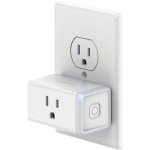
TP-Link Smart Wi-Fi Plug Mini: $34.98 - Amazon

845973098278

Like its bigger brother, the Smart Plug Mini enjoys easy setup on iOS and Android, a great mobile app, convenient remote control, integration with Amazon Alexa, and neat extra features like the aforementioned Away Mode. Unlike its sibling, however, it only covers a single outlet regardless of where you position it. It’s one of the smallest plugs we tested, making it a great choice for buyers who don’t have a lot of space.

Unfortunately, it also costs more than the Smart Plug with Energy Monitoring and, well, doesn’t offer energy monitoring. In other words, you need to be really concerned about space to choose it over the slightly larger alternatives from TP-Link and iDevices.

Price and features aside, this plug is every bit as solid a performer as its stablemate: we had no issues with connectivity during the testing period, and it was very responsive to commands on both iOS and Android devices. If you find it on deep discount and don’t need energy monitoring functionality, it’s a very good choice.

Like its bigger brother, the Smart Plug Mini enjoys easy setup on iOS and Android, a great mobile app, convenient remote control, integration with Amazon Alexa, and neat extra features like the aforementioned Away Mode. Unlike its sibling, however, it only covers a single outlet regardless of where you position it. It’s one of the smallest plugs we tested, making it a great choice for buyers who don’t have a lot of space.

Unfortunately, it also costs more than the Smart Plug with Energy Monitoring and, well, doesn’t offer energy monitoring. In other words, you need to be really concerned about space to choose it over the slightly larger alternatives from TP-Link and iDevices.

Price and features aside, this plug is every bit as solid a performer as its stablemate: we had no issues with connectivity during the testing period, and it was very responsive to commands on both iOS and Android devices. If you find it on deep discount and don’t need energy monitoring functionality, it’s a very good choice.


ConnectSense Smart Outlet: $59.95 - Amazon

799599562197

The ConnectSense Smart Outlet sticks out for a couple obvious reasons. First, it’s huge—no matter where you plug it in, this power brick–sized behemoth will cover both outlets on a wall panel. But that’s okay because it’s also the only product we tested that offers two independent smart outlets. That’s really handy and pretty cost-effective since the Smart Outlet costs around $60, or $30 per outlet—cheaper than any other option in our test group.

It works well, too. The outlets are responsive to app commands, connectivity was solid, and HomeKit integration was easy to set up. There’s even a bonus USB port on the left-hand side for charging extra devices. (You don’t get power monitoring on that one, though.) Speaking of power monitoring, we found that this plug’s reporting differed quite a lot from others we tested. For instance, it showed a draw of 36W from a small fan on low, while other plugs reported usage in the 25-27W range.

The ConnectSense Smart Outlet also has some serious drawbacks. For one thing, it’s iOS-exclusive. For another, its app is among the clunkiest we tested. It works, but it’s not much fun to use. And in addition to its potential unreliability, the energy monitoring functionality isn’t as feature-rich as you’d get from competitors like iDevices, TP-Link, and Elgato.


Belkin Wemo Insight: $34.99 - Amazon

F7c029fc

On paper, the Belkin Wemo Insight ought to be a strong contender for the best smart plug on the market. Not only does it offer power monitoring and a huge array of smart home integrations (including Alexa, Nest, Google Home, SmartThings, and IFTTT), but it has a sleek design and endorsements from respectable publications.

Unfortunately, setup was a notable pain point on Android, and the Wemo app was a tedious chore to use—especially compared to the slickly designed apps from some rivals. Like the Elgato Eve Energy and D-Link plugs below, the Wemo Insight also has a rounded design that blocks both wall outlets if you don’t plug it into the right one. Functionality was just fine in general, and we couldn’t fault the plug’s reliability, but the Wemo app needs work.


Elgato Eve Energy: $49.93 - Amazon

Elgato eve energy

The Elgato Eve Energy is a cute little plug, with gently rounded corners and a glowing LED button on the front. Unlike the bar-style smart plugs we tested, it blocks your second wall outlet if you position it incorrectly—make sure to plug it into the bottom socket to avoid a conflict.

Like all of the other HomeKit plugs we tested (iDevices Switch aside), it’s iOS-exclusive, so Android users need not apply. The Elgato app is well-designed (with unusually in-depth power monitoring stats), but not as user-friendly as iDevices’. The plug itself is responsive and reliable, but it just doesn’t have enough to stand out in a very competitive market.


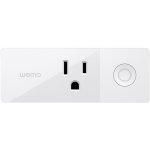
Belkin Wemo Mini: $33.99 - Amazon

F7c063

The WeMo Mini is exactly what you’d expect from the name: a smaller version of the WeMo Insight, without the Insight’s power monitoring functionality. On the plus side, it’s a well-made device, and very skinny so that you shouldn’t have any issues with it blocking a second plug. It also has the lowest MSRP of all the plugs we tested. But on the downside, it has all of the same disadvantages as the Insight and fewer features. We’d pass, unless the WeMo app somehow tickles your fancy.

Security Risk: Get Rid of Unwanted Apps

Using your social media account to log into an app or website can be easier than creating a new user name and password. But, after a while, you can collect more apps and become registered on more websites than you really use. This can leave you open to cyberattacks, phishing, and scams. When you use social media accounts to sign up for apps or websites, you may give the app or website permission to do things on your behalf, like post to your social media page. You’re also possibly saying it’s OK to access information like your name, birthdate, location, contacts, and even your messages. Over time, you may even forget which apps or sites have these permissions.

Here are three ways to help ensure you’re not granting permissions to sites and apps you no longer want to have this access:

  1. Ask yourself: “Why do they need this info?” When signing up for an app or website, pay attention to what permissions it’s asking for. If you’re not comfortable allowing access, select “deny “or “disagree” when you see the message asking for permissions. This typically stops the registration process.
  2. Purge your permissions list. Go to the settings on your social media site and follow the instructions that lead you to the list of sites and apps to which you’re granting access. Follow the instructions that tell you how to remove those apps or sites, click on one at a time and select the option that allows you to remove it.
  3. Make it a habit. Set a reminder on your calendar for at least every few months to check your permissions.

The FTC has more information for you about online security and privacy.