
8 Ways to Secure Your Wi-Fi Router

Sometimes the best thing to say about a wireless router in your house is that once it's set it, you forget it exists. As long as the devices that need the Wi-Fi connection can get on and function, that's all that matters, right?

Maybe, but we also live in the age of leaks, wiki and otherwise. If you're worried about the security of your home and by extension your personal data—especially from hackers who could casually sit in a car outside and get access to your systems—then you need to put a padlock on that wireless. You may also want to prevent others from using your network, and freeloaders alike.

So what do you do? Follow these tips and you'll be well ahead of most home Wi-Fi users. Nothing will make you 1,000 percent safe against a truly dedicated hack. Crafty social engineering schemes are tough to beat. But don't make it easy on them; protect yourself with these steps.

Change Your Router Admin Username and Password Every router comes with a generic username and password—if they come with a password at all. You need it the first time you access the router. After that, change them both. Immediately. The generic usernames are a matter of public record for just about every router in existence; not changing them makes it incredibly easy for someone who gets physical access to your router to mess with the settings.

If you forget the new username/password, you should probably stick to pencil and paper, but you can reset a router to its factory settings to get in with the original admin generic info.

Change the Network Name The service set identifier (SSID) is the name that's broadcast from your Wi-Fi to the outside world so people can find the network. While you probably want to make the SSID public, using the generic network name/SSID generally gives it away. For example, routers from Linksys usually say "Linksys" in the name; some list the maker and model number ("NetgearR6700"). That makes it easier for others to ID your router type. Give your network a more personalized moniker.

It's annoying, but rotating the SSID(s) on the network means that even if someone had previous access—like a noisy neighbor—you can boot them off with regular changes. It's usually a moot point if you have encryption in place, but just because you're paranoid doesn't mean they're not out to use your bandwidth. (Just remember, if you change the SSID and don't broadcast the SSID, it's on you to remember the new name all the time and reconnect ALL your devices—computers, phones, tablets, game consoles, talking robots, cameras, smart home devices, etc.

Activate Encryption This is the ultimate Wi-Fi no-brainer; no router in the last 10 years has come without encryption. It's the single most important thing you must do to lock down your wireless network. Navigate to your router's settings (here's how) and look for security options. Each router brand will likely differ; if you're stumped, head to your router maker's support site.

Once there, turn on WPA2 Personal (it may show as WPA2-PSK); if that's not an option use WPA Personal (but if you can't get WPA2, be smart: go get a modern router). Set the encryption type to AES (avoid TKIP if that's an option). You'll need to enter a password, also known as a network key, for the encrypted Wi-Fi.

This is NOT the same password you used for the router—this is what you enter on every single device when you connect via Wi-Fi. So make it a long nonsense word or phrase no one can guess, yet something easy enough to type into every weird device you've got that uses wireless. Using a mix of upper- and lowercase letters, numbers, and special characters to make it truly strong, but you have to balance that with ease and memorability.

Double Up on Firewalls The router has a firewall built in that should protect your internal network against outside attacks. Activate it if it's not automatic. It might say SPI (stateful packet inspection) or NAT (network address translation), but either way, turn it on as an extra layer of protection.

For full-bore protection—like making sure your own software doesn't send stuff out over the network or Internet without your permission—install a firewall software on your PC as well. Our top choice: Check Point ZoneAlarm PRO Firewall 2017; there a free version and a $40 pro version, which has extras like phishing and antivirus protection. At the very least, turn on the firewall that comes with Windows 8 and 10.

Turn Off Guest Networks It's nice and convenient to provide guests with a network that doesn't have an encryption password, but what if you can't trust them? Or the neighbors? Or the people parked out front? If they're close enough to be on your Wi-Fi, they should be close enough to you that you'd give them the password. (Remember—you can always change your Wi-Fi encryption password later.)

Use a VPN A virtual private network (VPN) connection makes a tunnel between your device and the Internet through a third-party server—it can help mask your identity or make it look like you're in another country, preventing snoops from seeing your Internet traffic. Some even block ads. A VPN is a smart bet for all Internet users, even if you're not on Wi-Fi. As some say, you need a VPN or you're screwed. Check our list of the Best VPN services.

Update Router Firmware Just like with your operating system and browsers and other software, people find security holes in routers all the time to exploit. When the router manufacturers know about these exploits, they plug the holes by issuing new software for the router, called firmware. Go into your router settings every month or so and do a quick check to see if you need an update, then run their upgrade. New firmware may also come with new features for the router, so it's a win-win.

If you're feeling particularly techie—and have the right kind of router that supports it—you can upgrade to custom third-party firmware like Tomato, DD-WRT or OpenWrt. These programs completely erase the manufacturer's firmware on the router but can provide a slew of new features or even better speeds compared to the original firmware. Don't take this step unless you're feeling pretty secure in your networking knowledge.

Turn Off WPS Wi-Fi Protected Setup, or WPS, is the function by which devices can be easily paired with the router even when encryption is turned because you push a button on the router and the device in question. Voila, they're talking. It's not that hard to crack, and means anyone with quick physical access to your router can instantly pair their equipment with it. Unless your router is locked away tight, this is a potential opening to the network you may not have considered.
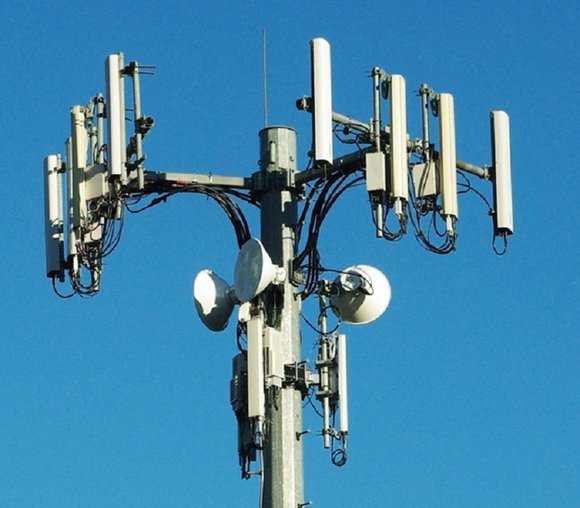
4G LTE Internet is a Network-Saver

4G LTE Internet is an under-utilized asset for your company’s network… and your sanity. As someone who’s owned a business telecom, Internet, and cloud brokerage, I’ve had my share of drama surrounding circuits taking too long to install. Whether it’s fiber taking a year to get built-out, or a T1 taking 6 weeks to install (when our customer’s business was relocating in 4), being at the mercy of an ISP’s unexplainable, bureaucratic timeline has been the most stressful part of my job.


Not far behind those bad experiences are the times I’ve had customers call me (in a panic), telling me their Internet circuit is completely down and they either do not have a backup or they have a ridiculously slow backup. And again, we are at the mercy of the ISP’s timeline, as the customer and I wait (as minutes seem like hours), for the Internet circuit to be restored.

Enter 4G LTE wireless Internet for business.

Here is why 4G is a great backup solution for your Internet circuit...

High bandwidth

Typical 4G LTE Internet speed ranges from 5-15M download and 1-5M upload. That’s decent speed but did you know you can bond multiple connections (via a Peplink or similar device), to get even faster speed?

Furthermore, if 4G XLTE is available in your company’s neighborhood, your business can typically get double the bandwidth (i.e. 40M/10M). Bond a second connection and you just created 80M download speed.

Inexpensive

A typical 4G LTE Wireless Internet connection is only going to cost your company between $50–$100/month. It’s about the same price as business-class cable, which is about as inexpensive as you’ll find these days for a high-bandwidth business Internet connection.

Availability

How many places have you been where the little “LTE” symbol on your phone disappears and it says “1x.” Not many. Maybe in the panic room you recently installed in your house— or in Yosemite — or a few other extremely remote areas.


4G is available almost everywhere a business could be. On top of that, there are ISP’s who specialize in 4G and can sell your company a 4G LTE Internet connection from the best-available provider servicing your company’s exact address.

Fast installation

4G LTE can be installed in a couple of days.

Out-of-Band Management

When your company’s remote site’s Internet goes down, are you “flying blind” trying to call an on-site employee and have them make changes to the router? Or maybe you’ve experienced the lightening-fast speed of using a POTS line to access a router, remotely?

If your company has 4G LTE for a backup — but you lose your primary Internet connection — not only is the Internet still “up,” but you also have high-speed access into the router for troubleshooting your primary circuit.

Why and How to Create a Culture of Cybersecurity

You should have the best security technology you can possibly have, and your organization should have the most effective security policies it can create. But ultimately, the most powerful way to protect the organization is to create a culture of security. Whatever your place of business — whether it’s a large or small organization, healthcare provider, academic institution or government agency – creating a culture of cybersecurity from the break room to the boardroom is essential. Why is a culture of security so important? Think of the employees as the company’s first firewall. Staff stand between an organization’s information assets and the thieves who want to plunder them. Intrusions that are based entirely on technology are rare. Most intrusions result from fraud that takes advantage of employee carelessness, lack of judgment or even criminal intent.

Think of your company as a community. Most observers say there are three primary factors that help ensure law and order in a community.

1. Risk Perception

Members of the community can only act to prevent or report crime if they know what it looks like and have a certain level of fear about it. This is why the police departments in some communities work so hard to establish trust in their communities, and it’s the origin of the byword, “See something, say something.” In a company, you can take advantage of risk perception with user awareness training. Teach all employees what cybercrime looks like and how it is likely to affect them.

2. Social Norms and Conformity

Most human beings behave well because of social norms — informal understandings about the proper way to behave. Most of us go through our everyday lives with a sense of these informal understandings. Yes, the laws are there, but the opinions of our neighbors are keeping us in line. Just like every community, every organization has a culture that includes social norms, often ones we aren’t even aware of. Finding ways to incorporate security into those norms will go a long way toward protecting your organization’s assets. Here’s how you incorporate security into your organization’s social norms. First, make sure the leadership of the organization stresses the value of security and backs up these values by modeling appropriate behaviors. A CEO who talks about the importance of security and then writes his or her password on a sticky note on the computer monitor will harm more than help the culture of security.

Second, provide more advanced user training that teaches skills in addition to awareness. Give it a positive value. The Logical Operations CyberSAFE program, for example, culminates in certification so that those who successfully complete it have credentials providing tangible evidence of their value to the organization.

3. Routine Monitoring

Studies show that companies with skilled incident response teams suffer fewer catastrophic data breaches and lower average cost when data breaches do occur. This is because incident response teams reduce the “dwell time” of criminals that manage to invade your network. But incident response teams themselves also contribute to the culture of security, because their presence reminds employees of the importance of security.

My advice is that you designate, train and support an incident response team and promote their visibility within the organization. You may even want to consider ways to enhance the team’s prestige: stage a competition among candidates to join it, regularly report on it in the company newsletter and have its members visit and give presentations on security to other departments. Promoting the importance of the incident response team can contribute both to establishing social norms and conformity and the reassurance that contributes to a sense of stability that allows people get on with their work. The Logical Operations’ CyberSec First Responder program is an example of a way to train and certify an elite incident response team.

It’s not all about technology and law enforcement. You need to find as many ways as possible to support your employees’ adherence to security policies, exercise of good judgment and recognition of fraud. Risk perception, social norms and routine monitoring can only help.

Tips to Help Protect Your Business from Cyber Crime

Protect Your Assets

Once you have identified your “crown jewels” and critical assets, build your cyber protections around these first as you create a trajectory forward to protect your entire businesses. Ultimately, your goal is to build a culture of cyber security that includes employees knowing how to protect themselves and the business and understanding the cyber risks as your business grow or adds new technologies or functions.

Protections will include:

  • implementing cyber protections on core assets
  • implementing basic cyber hygiene practices across the business

Now that you know the assets of your organization, Step 2 is to implement protections. While the what you need to do will be based on your assets, protections may include:

  • Locking down logins: Using stronger authentication to protect access to accounts and ensure only those with permission can access them. This can also include enforcing strong passwords.
  • Backing up data: putting in place a system–either in the cloud or via separate hard drive storage–that make electronic copies of the key information on a regular basis.
  • Maintaining security of devices over time: This includes knowing that software patches and updates are done in a timely fashion.
  • Limiting access to the data or the system only to those who require it.

Train Employees

Creating a culture of cybersecurity is an important element building a cybersecure business. That culture is created by establishing the cybersecurity practices you expect your employees to follow and training and reinforcing that training so you have confidence the practices are being followed. Employees should know:

  • Why cybersecurity is important to protecting your customers, their colleagues and the business
  • The basic practices that will keep them and the business cybersecure (see basic hygiene below)
  • How to handle and protect personal information of customers and colleagues
  • How and when to report cyber incidents
  • Any specific use polices that your business has including what websites they can visit, the use of personal devices in the workplace, special practices for mobile or work at home employees, etc..

Basic Cyber Hygiene

Having everyone in the business follow these tips will help you make significant strides in protecting your business:

  • Keeping a clean machine: Your company should have clear rules for what employees can install and keep on their work computers. Make sure they understand and abide by these rules. Unknown outside programs can open security vulnerabilities in your network. If they have any responsibility for making sure the devices use have updated software train them to implement those updates as quickly as possible.
  • Following good password practices: A strong password is a sentence that is at least 12 characters long. Focus on positive sentences or phrases that you like to think about and are easy to remember (for example, “I love country music.”).
  • Don’t reuse passwords: At a minimum, work and personal accounts should have separate passwords.
  • Lock Down Logins: Whenever possible, implement stronger authentication sometimes referred to as multi-factor authentication of two-step verification.
  • When in doubt, throw it out: Employees should know not to open suspicious links in email, tweets, posts, online ads, messages or attachments – even if they know the source. Employees should also be instructed about your company’s spam filters and how to use them to prevent unwanted, harmful email.
  • Use WiFi wisely: Accessing unsecured WiFi is very risky. If you have employees who need WiFi access out of the office, use a virtual private network (VPN) or a personal hotspot.
  • Backing up their work: Whether you set your employees’ computers to back up automatically or ask that they do it themselves, employees should be instructed on their role in protecting their work.
  • Staying watchful and speaking up: Your employees should be encouraged to keep an eye out and say something if they notice strange happenings on their computer.
  • Plug & scan: USBs and other external devices can be infected by viruses and malware. Use your security software to scan them.

How To Wipe Your Phone Before You Sell It

So you've got your eyes on that shiny new Pixel 2, or maybe you’re getting ready to go (almost) all-screen with the iPhone X. Since you’ll be getting a new phone, you won’t need your old one anymore. Plus, you can sell it and make some extra cash to put towards your new one. Some companies, like Apple and Google will even let you trade in your old phone to get money towards their latest and greatest phones.

But before you get ahead of yourself, that phone’s full of top-secret messages and embarrassing selfies that you’d never want anyone to see. Good news, though! All that private info can be wiped away before you hand off your boring old phone to some stranger. Here's how to do it.

iPhones

For iPhone owners, you’ve got a few things you need to do to clear out all your junk. First, unpair your Apple Watch to avoid any struggles when your new iPhone gets plopped on your doorstep. Then, back up your phone so everything’s right where you left it.

Then it’s time to bulldoze all your data off that bad boy. You should sign out of iCloud, which is as simple as jumping into Settings, tapping your name up top, scrolling all the way down, and hitting Sign Out. After you type out your Apple ID and password, tap Turn Off and you’re all set. To clear up all your data, dive back into Settings, hit General, scroll down to Reset, and choose Erase All Content and Settings.

Oh, and one more thing: If you’re switching to an Android phone, save yourself a headache and turn off iMessage. That way, you won't miss any incoming messages on your new phone.

Android Phones

Things are a bit different on Android, but you can still back up all your data and get everything cleared off pretty easily. If you’re sticking with Android, sync all your apps to your account. You can do this by going to Users and Accounts under Settings, tapping Account Sync, and tapping Sync Now.

After that’s done, back everything up. Jump into Settings, select System, hit Backup, and turn on Back Up to Google Drive. This will make sure all your data is nice and snug, ready to be unpacked when your new phone makes its way to your hands.

Now that you’ve got your data on lock, it’s time to clear it all. For that, you just dive into Settings, tap that big ol’ System button, and choose Reset (your device may also say Backup and Reset, in which case, pick that). From there, select Factory Data Reset, then Reset phone. Since you’re getting rid of this phone, you’ll want to erase everything.

Got it? Good. You’re all set! But if you’re feeling a little nostalgic and aren’t ready to say goodbye to your old pocket companion, here are some neat things you can do with your old phone.